2.4.2 Page Titled
In Plain Language
2.4.2 Page Titled (Level A) requires every web page to have a <title> element that describes the page's topic or purpose[1]. The <title> is the first thing a screen reader announces when a page loads, the string the browser shows in the tab, the default name a bookmark stores, and the snippet heading most search engines surface.
A page with <title>Untitled</title>, <title>Document</title>, an empty <title></title>, or the site name alone gives no orientation cue -- the user agent reads it out verbatim and the user has to guess where they are from the page body.
Why It Matters
- The
<title>is the first string the screen reader emits on load, before any heading or landmark. It is the only orientation cue a user gets before the page content is reached. - Users with several tabs open distinguish them by their title strings. Generic or duplicated titles collapse that distinction and force the user to activate each tab to see what it contains.
- Titles seed the default name for bookmarks and browser history entries. A bookmark called "Untitled Document" is unfindable later.
- Single-page applications that do not update
document.titleon route change present every view with the same title, which fails 2.4.2 for every route except the one the title was written for[1].
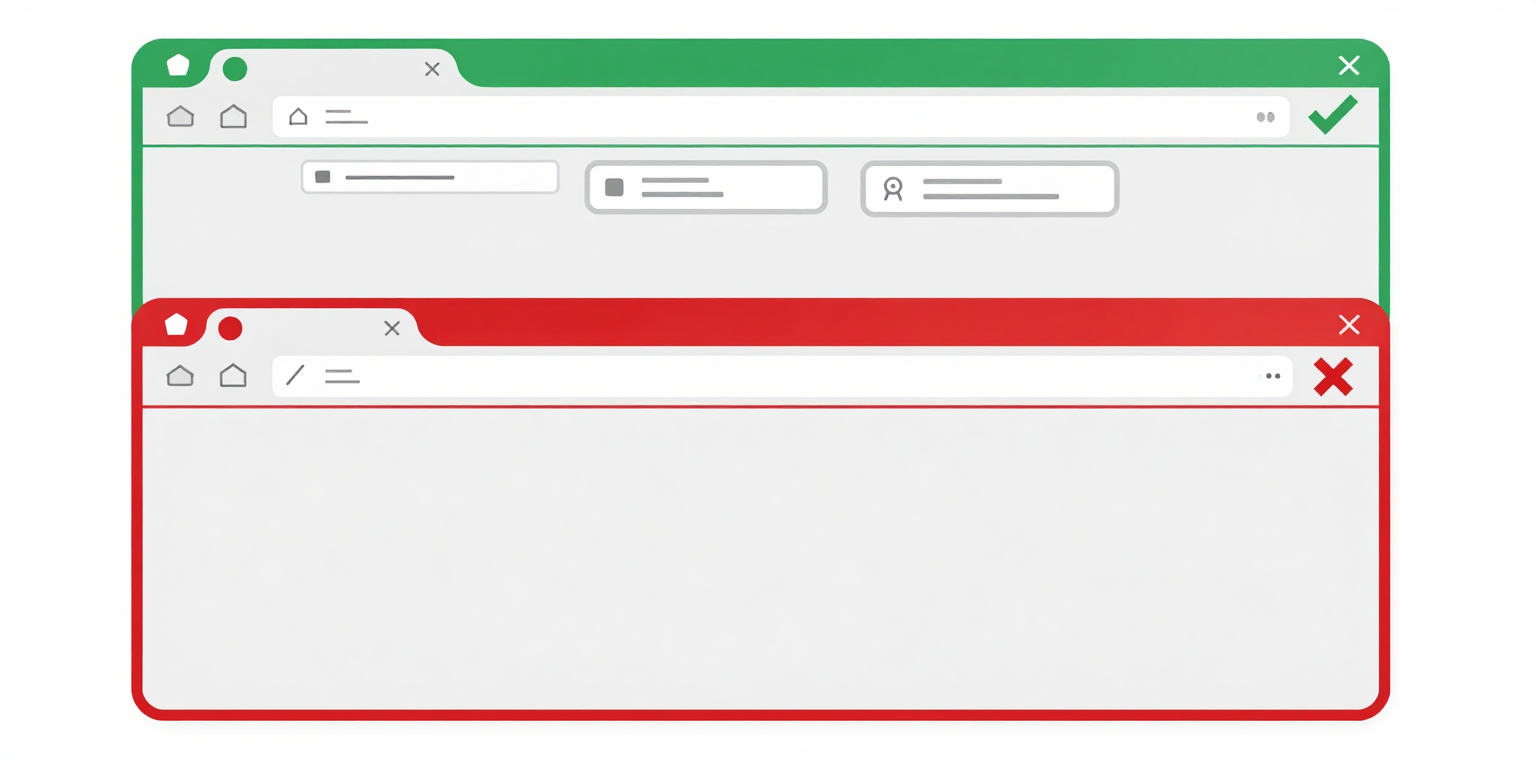
Examples
<title>Adult Literacy Programs | Bridges Learning Center</title>
<title>Contact Us | Bridges Learning Center</title>
✔ Each page has a unique title with page name first, then site name
<!-- Pattern: Page Name | Site Name -->
<title>Adult Literacy Programs | Bridges Learning Center</title>
<title>Contact Us | Bridges Learning Center</title>
<title>Spring 2026 Events | Bridges Learning Center</title><title>Home</title>
<title>Untitled Document</title>
<title></title> (empty)
✘ These titles tell users nothing about the page content
How to Fix It
- Put the distinguishing identifier first. The
Page Name | Site Namepattern front-loads the unique part so screen reader users hear it before the site name repeats on every page.<title>Bridges Learning Center -- Contact Us</title>buries the identifier;<title>Contact Us | Bridges Learning Center</title>does not. - Compute the title from page content, not the template. Hardcoding the site name in the base template and appending the page name in every individual template is how duplicate titles ship. Make the page title a required template variable, fail the build if it is empty, and let the layout concatenate
| Site Name. - Update
document.titleon every SPA route change. React Router, Vue Router, and Next.js app router do not update the document title by default -- the initial HTML title persists across client-side navigation until you write todocument.title(or use a head-management library) in a route change handler. Wire this into the router, not individual components, so new routes inherit the behavior automatically. - Reject default export titles.
Untitled,Untitled Document,Document,New Tab, and a single-word site name are the strings that ship when a CMS template, a word processor export, or an SPA skeleton has never been customised. Lint the build output for these strings and fail the deploy[1].
References
- [1] W3C (2023). Understanding Success Criterion 2.4.2: Page Titled. W3C, Accessed 2026-04-07. https://www.w3.org/WAI/WCAG22/Understanding/page-titled.html ↩ ↩ ↩